Tutorial on registering, logging in, and installing the BT panel.
BT Panel is a website management tool that runs on a server operating system. The initial configuration and installation of BT Panel, including registration and login, only require one configuration at the time.
1.1 Registration and Login
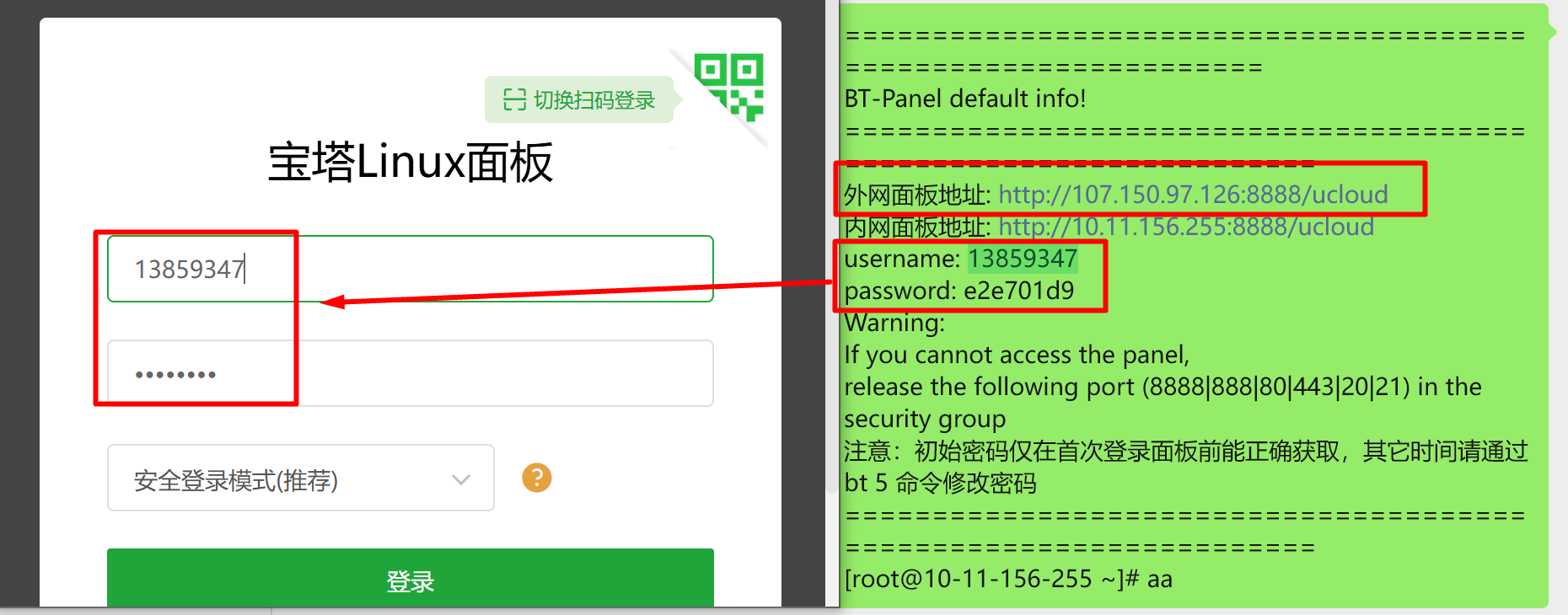
In the previous server purchase and configuration tutorial, you obtained your own BT Panel address and account password. Click on the [External Panel Address] and enter your account and password.
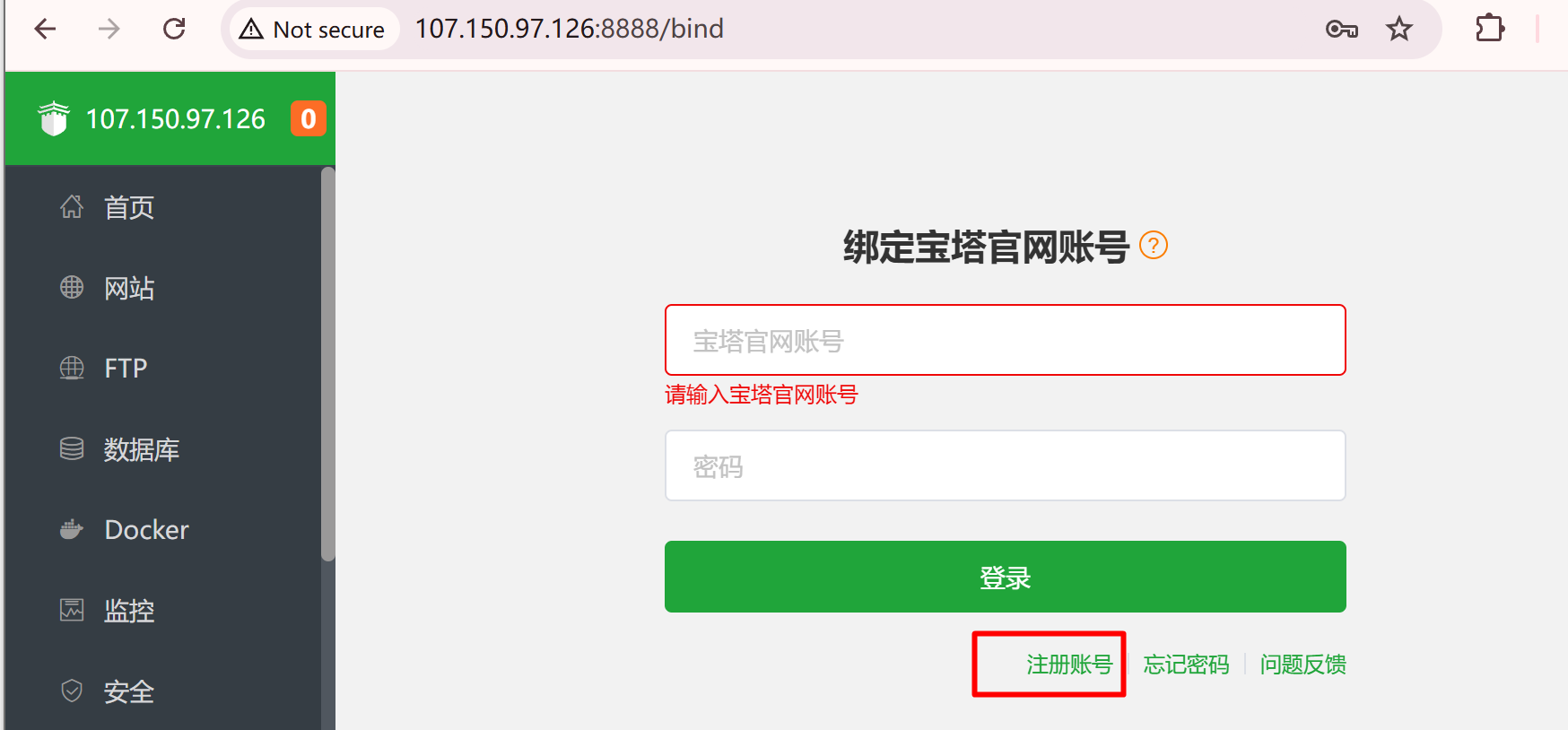
After logging into BT Panel, register and log in. This part is very simple and will not be shown in the example.
1.2 Installation Environment
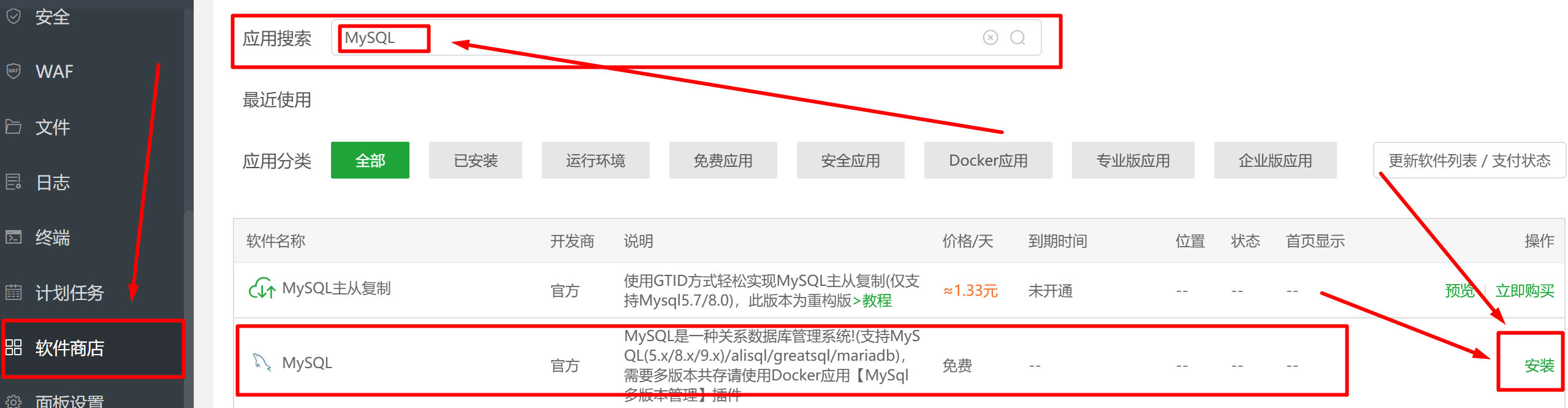
After successfully logging in, open the [External Network Panel] -> [Software Store] to install MySQL, select [5.7.44] -> [Fast Installation]
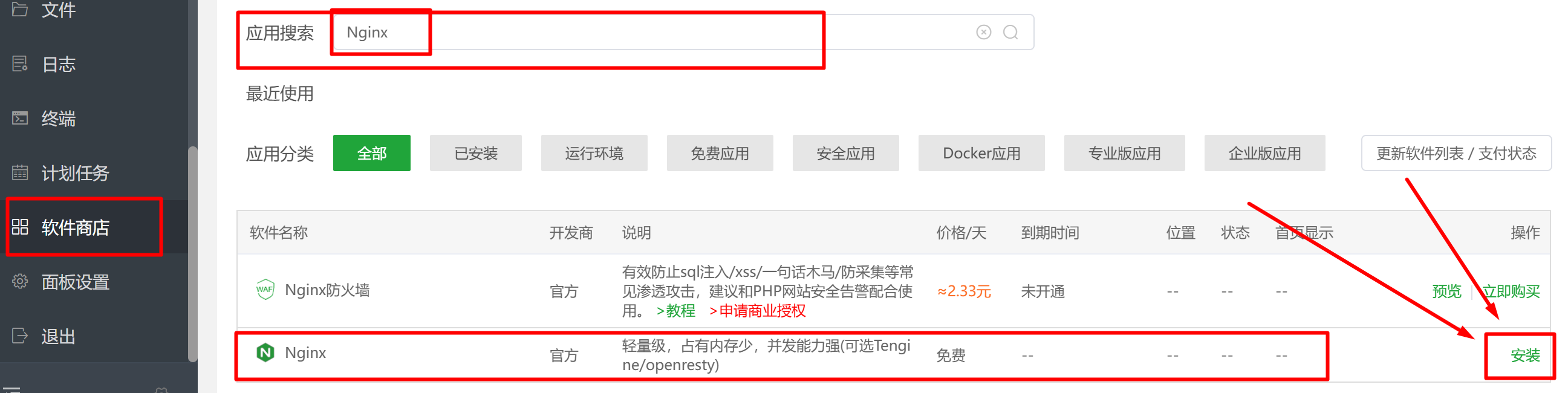
Continue: Install Nginx from the [Software Store], select [1.24.0] -> [Fast Installation]
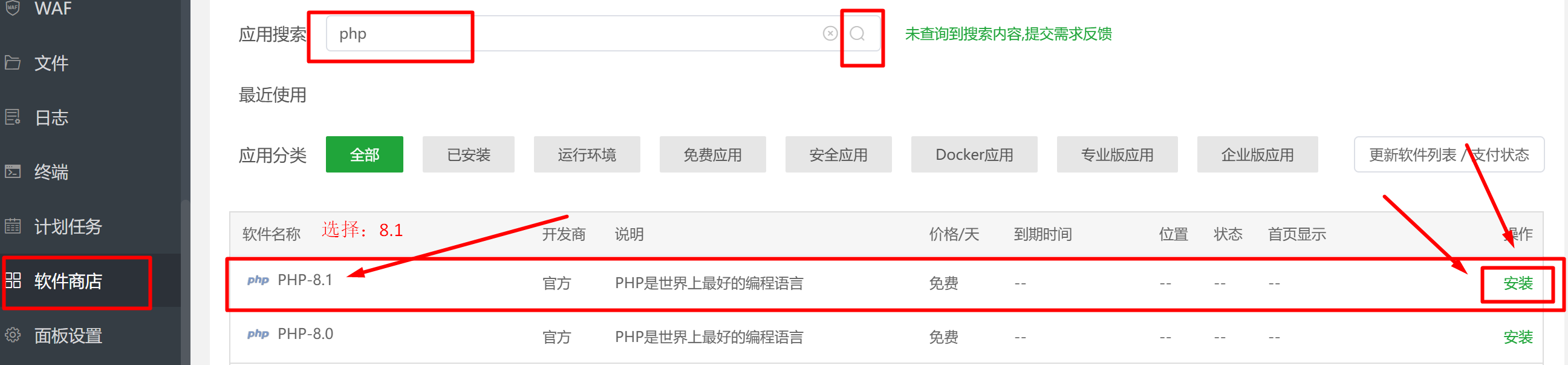
Continue: Install PHP from the [Software Store], select [8.1] -> [Fast Install]
Website creation tutorial using BT Panel
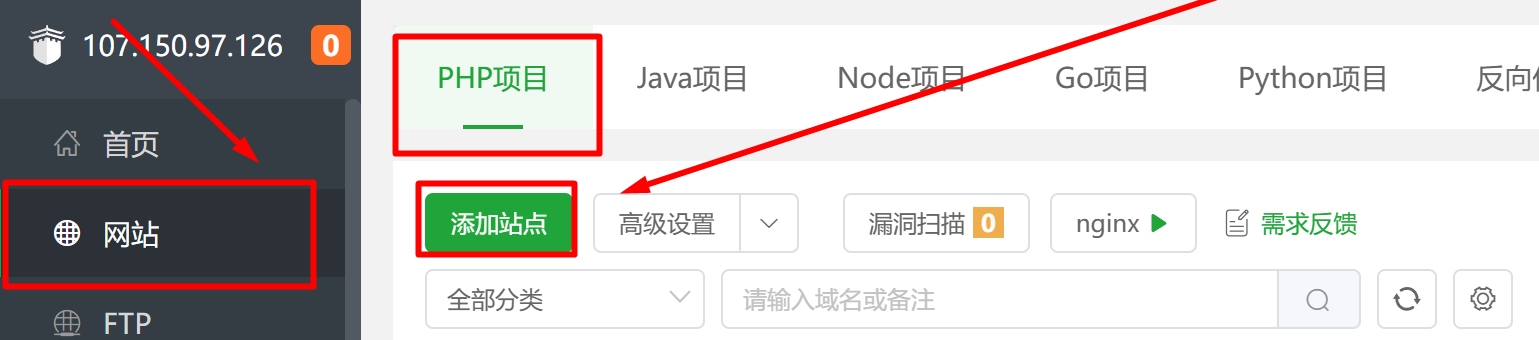
Click [Websites], [PHP Projects], and add a site.
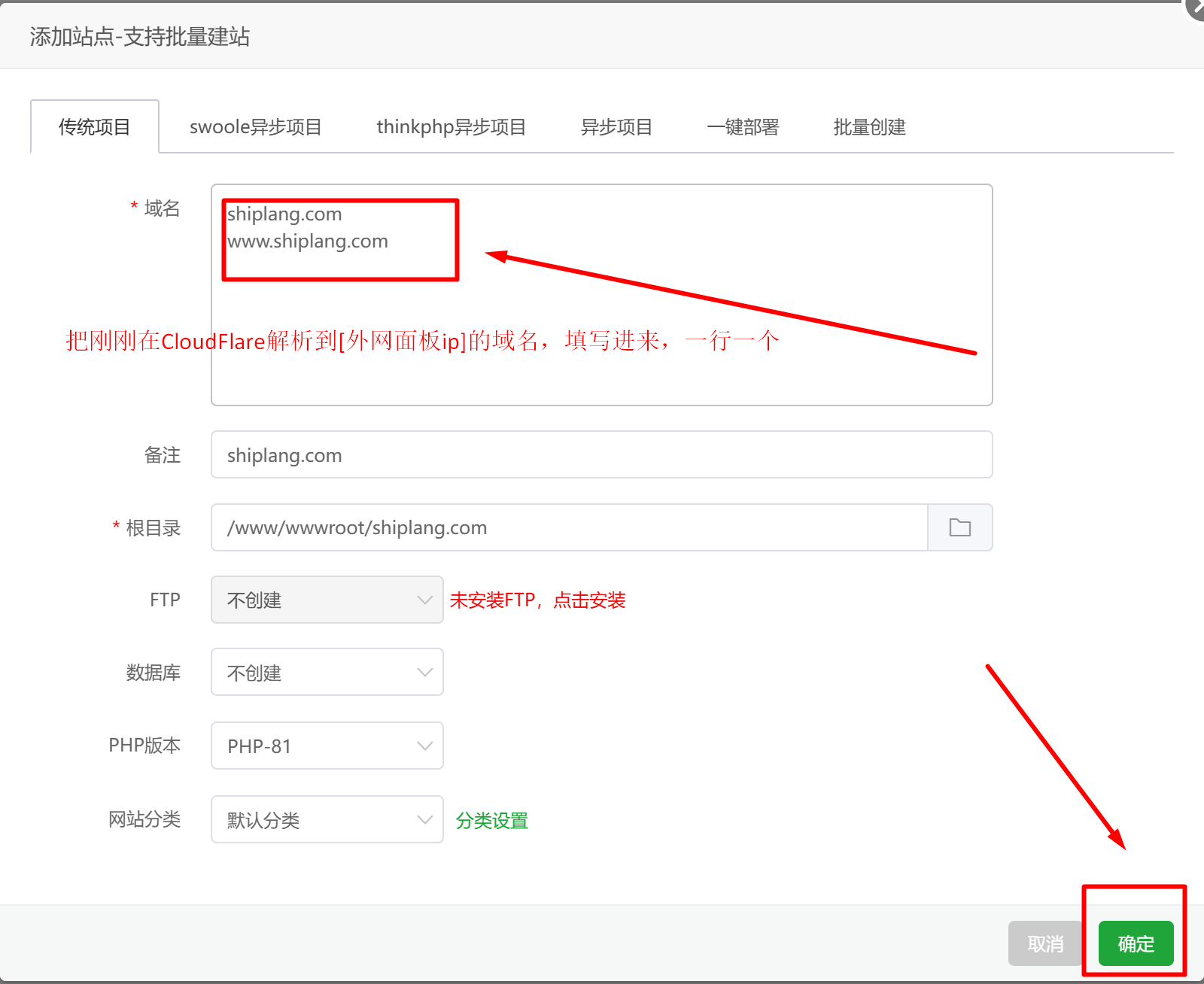
Enter the domain names you just resolved in Cloudflare, one per line.
Then click [Settings] -> [SSL] -> [Let's Encrypt] -> [File Verification] -> [Select All] -> [Request Certificate]

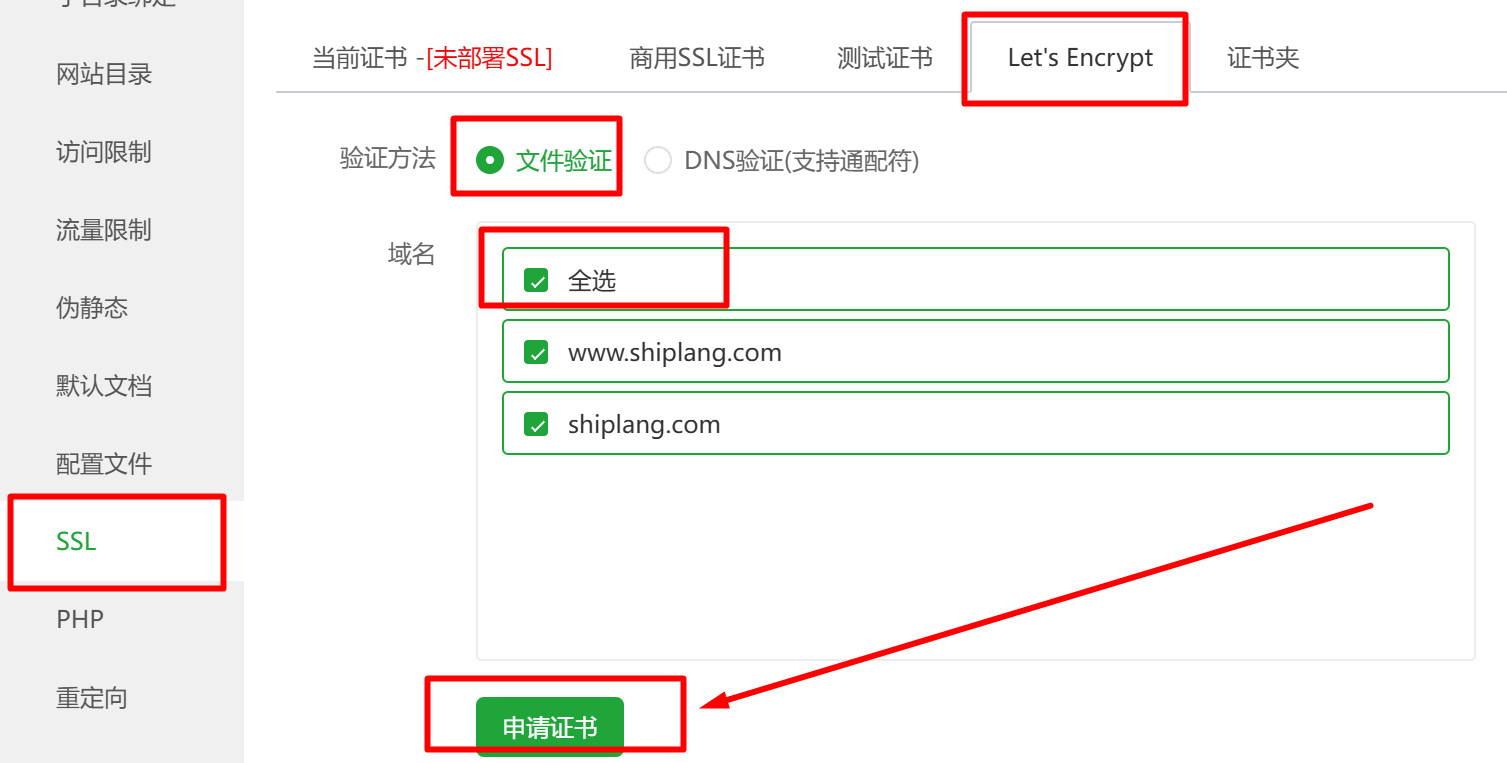
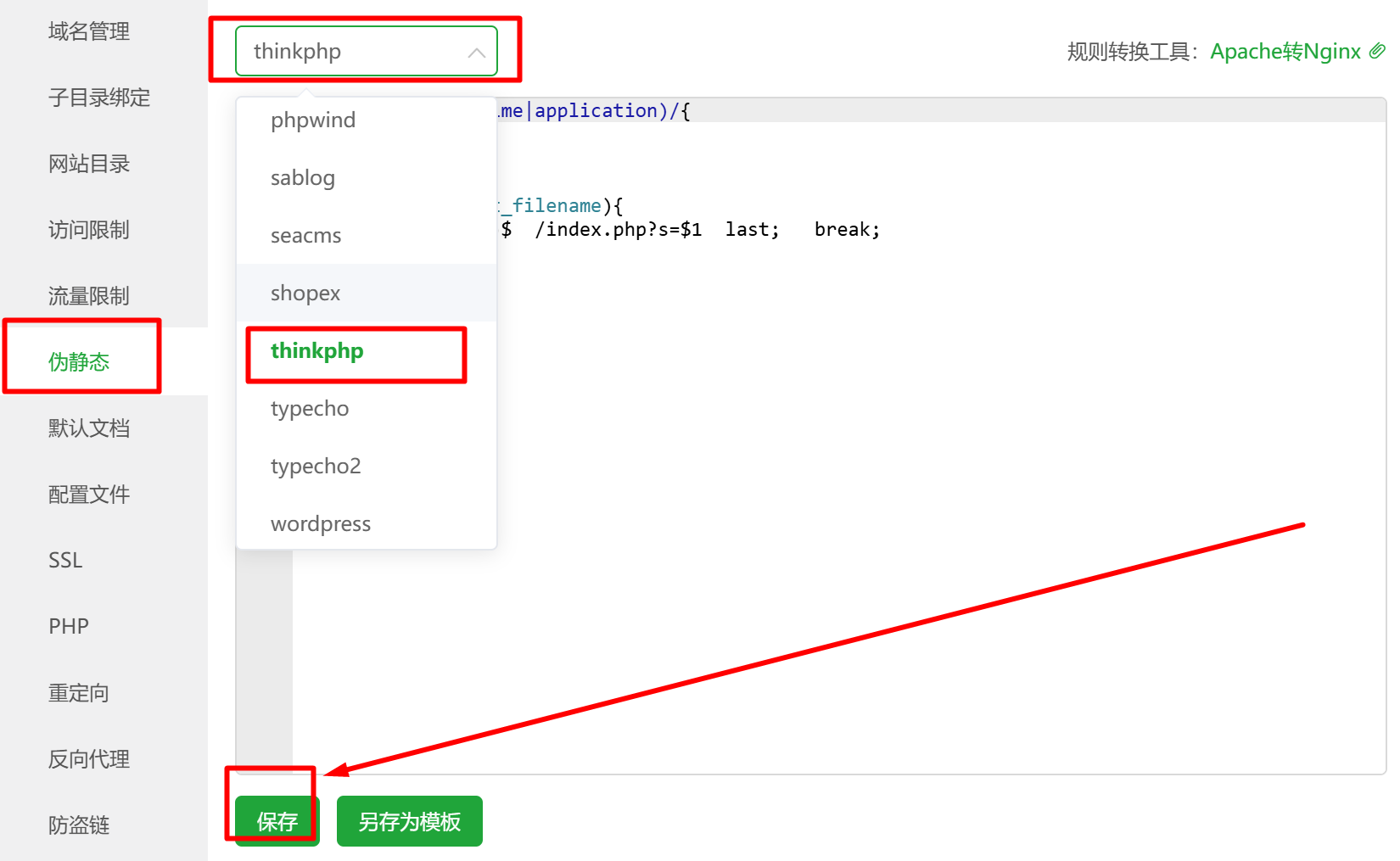
After applying for the certificate, find [Pseudo-static] -> [ThinkPHP]. Once a few lines of code appear in the edit box, click save!